
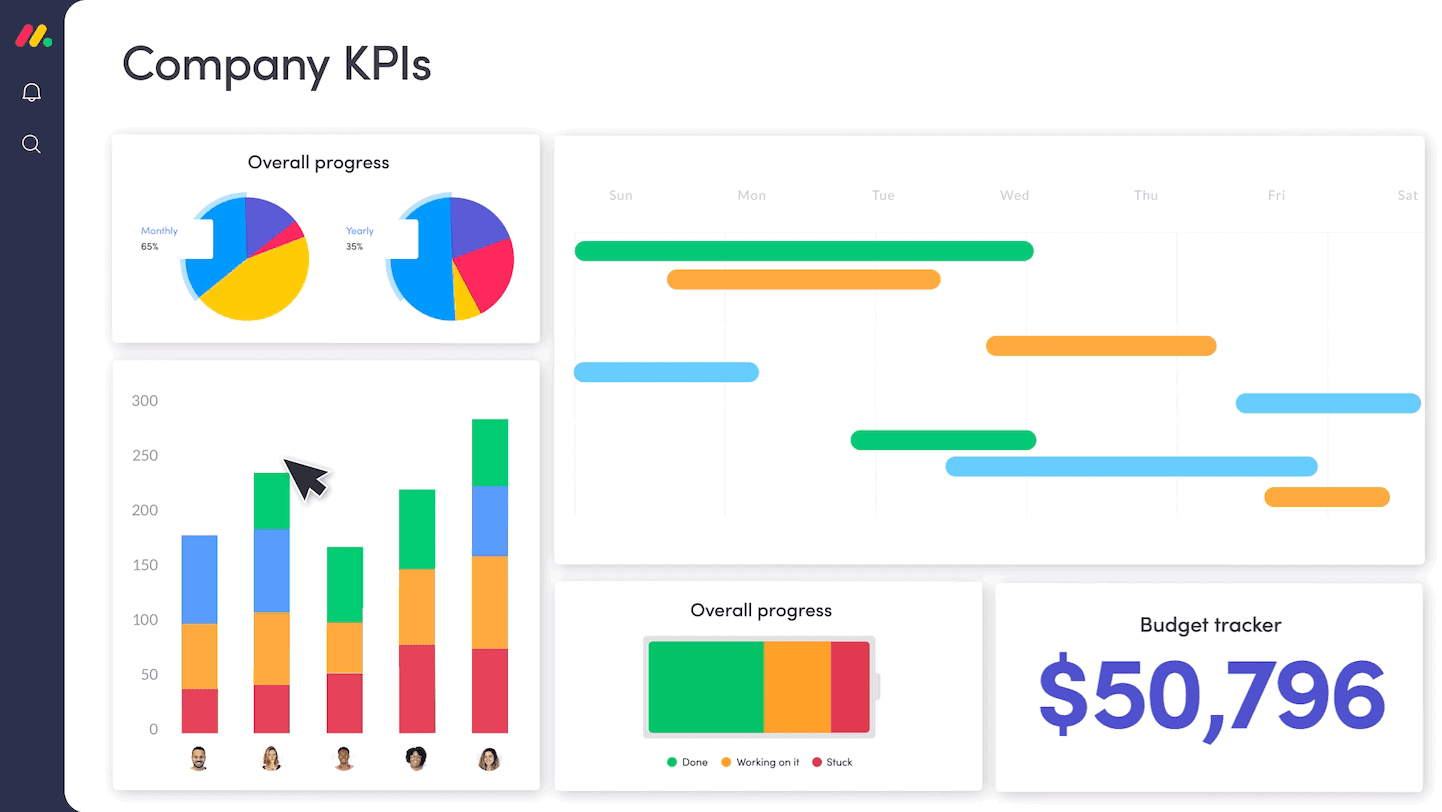
What exactly is Monday Sales CRM?
When Sales CRM first launched, it wasn’t a standalone product.
At the time, you had to subscribe to Monday Work Management first, and then add Sales CRM on top of it. Work Management provided the underlying building blocks, and Sales CRM simply layered on a set of pre-built boards, dashboards, and sales-focused features.
And to be honest, at that time Sales CRM offered so few unique features and was so expensive that I was actively recommending my clients NOT to use it.
That’s no longer the case.
Today, Monday CRM is a standalone product. You can subscribe to it directly without needing a separate Work Management license, and for most users, that’s exactly what you should do.
And these days it comes with a whole host of powerful features that Work Management users don't get to enjoy.
That said, it’s important to understand what you’re actually getting out of the box.
Monday CRM ships with a very basic, highly generic CRM setup. That’s intentional. It allows the product to appeal to a wide range of businesses, industries, and sales models. But that same generic design also hides a number of non-obvious structural limitations.
Most users won’t notice these limitations early on. They tend to surface later, when you:
- Start automating more aggressively
- Try to scale your CRM beyond a handful of users
- Need accurate reporting across contacts, deals, and activities
- Discover edge cases the default boards don’t handle well
- Try to re-organise your Boards and Workspaces
If you build blindly on top of the default setup, those limitations can absolutely come back to bite you on the ass down the road. I’ll be unpacking those issues in detail in other posts.
How to sign up for the easy to use Monday Sales CRM Platform from Monday.com
These days Monday CRM is a standalone product and users can sign up for just Sales CRM or they can add the CRM Product to their existing Monday account to get more features and functionality on top of the Monday Products they are already using. If you are new to Monday and are unsure which of their products are right for you, I would recommend you start by trialling Monday CRM and only consider adding other Products to it once you are certain that Monday is the best platform for you.
In Monday, free trials are 14 days long, don't require a credit card and are automatically at the Pro Plan level, which is good because it gives you access to practically every feature and really lets you see what the platform is capable of.
Normally the Monday team is happy to extend the free trial by an additional 7 days or so if you get in touch and tell them you haven't had enough chance to test it thoroughly yet.
If you feel you will need longer than 14 days to test the platform and don’t need all the features that the Pro tier offers then you might want to just sign up for the Individual Plan (free forever). It is very limited in features but remove the time pressure of trialing a paid plan.
Having said that, you don't get access to any Automations on the free plan and my honest advice to anybody considering Monday as a solution is this; if you don't need automations or integrations, I would strongly recommend considering another solution instead of Monday. Automations and Integrations are the beating heart of Monday and what makes it so powerful and unique. Without them, there are a host of other options out there you could try that might be more suited to your needs.
Once you have decided on a Trial or Plan, it’s time to sign up.
Note #2: Before you dive into this guide, you may wish to read another article I wrote about Monday’s features, pricing & information and whether or not I think it is good value. You can check out this article here.
Note #2: If your trial expires and you haven’t had time to fully test Monday, you can request an extension of your trial from Monday support.
Signing up to Monday Sales CRM
- Go to the Monday CRM pricing page here https://monday.com/crm/pricing. Notes;
- Monday has multiple products and multiple pricing pages. Make sure to use the above link if you definitely want to sign up for CRM and not one of the other products.
- All of the paid Monday plans are based on a minimum of 3 users and the pricing page will default to the annual pricing. Annual pricing will cost you less per month but you pay for a year in advance. If you are on the fence as to whether Monday is the right solution for you, make sure you check the monthly pricing as you will most likely want to stick to monthly pricing until you are 100% sold on the solution.
- Choose either the Individual Plan (free forever) or a Trial of any of the paid plans. Notes;
- It doesn't matter which paid plan you click on when you sign up for the free trial, the free trial is always at Pro Plan level. So, even if you clicked on a cheaper plan, be aware that the features you get in your free trial are only available at the Pro Plan level. Ie if you sign up to a lower paid plan at the end of your trial, you will lose some features you had access to during your trial.
- Enter your email OR use the “Continue with Google” Google Single Sign On option to sign up. If you choose Google SSO, you may be asked to enter your password and possibly even verify your identity (usually by logging into Gmail on your mobile phone and clicking on “Yes, it was me”) or your computer may have remembered your password and may validate your credentials automatically.
- In the next pop-up window, you will be asked for your full name, password and account name and then you will have to agree to the Terms of service and privacy policy. Note that your account name will become your subdomain. Ie if your account name is pinocchio, then once you complete signup your Monday.com url will be pinocchio.monday.com.
- Once you have created your account, you will then be asked a few onboarding questions by Monday so that the system can be somewhat personalised for you. But this part is fairly painless and straight forward so I’m not going to cover it here.
Monday.com CRM Features Overview
This is where Monday Sales CRM shines, especially for teams who want control without rigidity.
1. Fully Customisable CRM Boards
Out of the box, you get standard CRM boards like:
- Leads
- Deals
- Contacts
- Accounts
- Activities
- Client Projects
But unlike traditional CRMs, these are not locked objects and every Column in every Board is essentially a "custom field".
Each board can be:
- Renamed
- Re-structured
- Connected to other boards
- Automated in almost any direction
This means your CRM can reflect how your business actually works, not how a vendor thinks it should work.
2. Connected Data (The Real Superpower)
In Monday, any item in any board can be connected to items in other boards.
That means:
- One contact can be linked to multiple deals
- Deals can be linked to accounts, activities, and projects
- Data stays synced across boards using mirrored columns
This gives you full visibility regardless of where you’re working.
3. Emails & Activities: A Built-In Communication Hub
The Emails & Activities Widget allows you to:
- Send and receive emails directly inside Monday
- Use email templates with dynamic variables
- Track opens
- Log calls, meetings, and notes
- Automatically log emails from Gmail or Outlook
This is included by default in Sales CRM (unlike other Monday products).
4. Sales Pipelines & Deal Stages
The Deals board includes:
- Visual sales pipelines
- Stage tracking
- Automated group movement when deals are won or lost
Marking a deal as Won automatically updates stages and moves it to the Closed Won group.
(Closed Lost, oddly, requires manual cleanup unless you fix it yourself.)
5. Dashboards & Reporting
Dashboards pull data from across all boards and display:
- Pipeline value
- Conversion rates
- Deal velocity
- Activity volume
- Performance by sales rep
These dashboards are:
- Visual
- Filterable
- Customisable per role
6. Quotes & Invoices
Monday includes a built-in Quotes & Invoices widget, allowing you to:
- Generate quotes from board data
- Pull in connected board information
- Add taxes, discounts, and totals automatically
- Share via link or download as PDF
For many service businesses, this replaces external quoting tools entirely.
7. Automations (Where the Real Time Savings Live)
Monday’s automation engine allows you to:
- Send emails based on status changes
- Create items in other boards
- Move deals automatically
- Trigger workflows based on email activity
- Reduce manual admin dramatically
The Overview Section - see all your data (or just what you need/want) in one view
The Overview section is designed to help you see all of the information for one item in one place without having to scroll for miles and miles.
You can customise the Overview Section so that it displays all of the information you want to see (and none that you don’t).
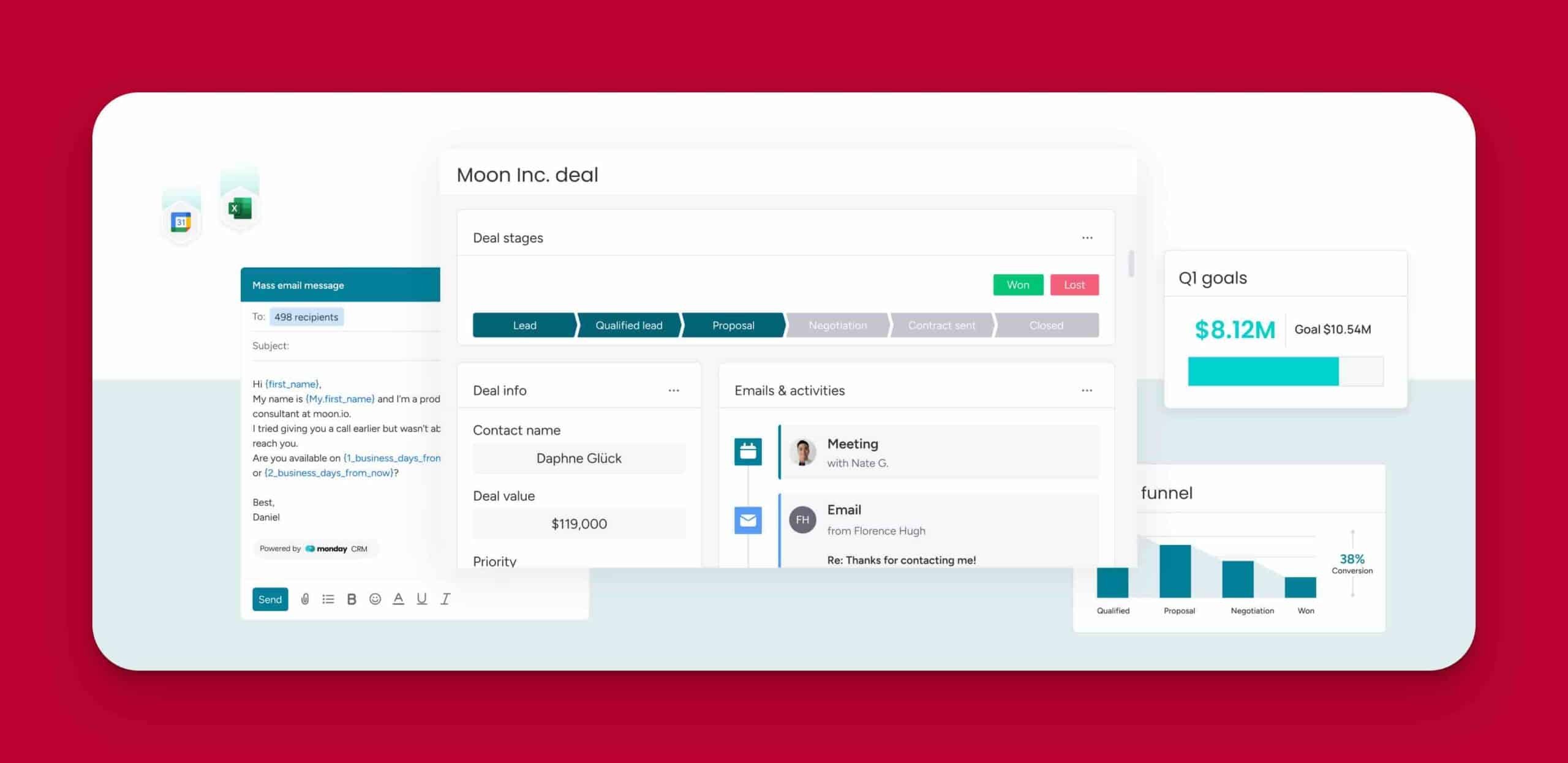
As an example of the kind of info the Overview Section displays, let’s look at the Deals Board and the Overview Section for Deals.
By default, the Overview Section for Deals will show;
Deal stages for the item
A simple graphic representation of your sales pipelines allowing you to easiy see where each Deal is at in the sales cycle.
Marking a Deal as won will mark all the Deal Stages as done (green) with the final stage showing “Won”. Marking it as lost will turn all the Deal Stages red with the final stage showing “Lost”
If a Deal is marked as Won it gets moved to. the Closed Won Group in the Deals Board.
If it is marked as Lost it stays in the Active Deals Group (which is an oversight – it should get moved to a a Closed Lost Group).
In the Emails & Activities Widget you can;
- View previous emails sent to/from anybody who’s email address is included in the item.
- Create and reply to emails
- Use email templates with custom variables that auto-populate.
- See how many times an email was opened.
- Auto suggest email addresses for recipients based on previously sent emails.
- Log calls, meetings & notes
- Filter by activity type (email, call, meeting) and dates
- See when any email was sent and by whom.
The Emails & Activities Widget
This Widget shows a timeline view of all emails sent/received to/from the Item email address as well as calls, meetings and notes logged.
Sub-items View
If there are any sub-items associated with the Deal, they will be displayed here.
The Related Contacts Widget
This Widget shows a timeline view of all emails sent/received to/from the Item email address as well as calls, meetings and notes logged.
Integrating your emails with Monday Sales CRM
In Sales CRM (unlike Work Management and the other Products), the Emails & Activities Widget comes pre-installed in the Updates Section so you won’t need to add it.
All you need to do is open an Item to see and use the Emails & Activities Widget in the Overview section of the item view menu.
Email automations
Not only can we set up automations to send self-customizing emails automatically, we can also trigger other automations based on email activity. For example, when a new email arrives from an email address in one of our email columns, Monday can automatically move the corresponding item to a Group.
Email tracking
(Optional). Allows you to see if an email was opened and if so, how many times it was opened. (Doesn’t track link clicks it seems). In the timeline view of the Emails & Actitivies widget, you can see all the emails sent and received, who sent each email and when and how many times it was opened.
Email signatures
You can add plain text or HTML email signatures right within Monday. If you are on the Pro or Enterprise you can turn off the Monday branding in your emails.
Email logging
In the settings for the Emails & Activities Widget, you have the option to log emails sent from your Gmail or Outlook Inbox. You can choose to either log all emails sent into your Emails & Activities Timeline or you can choose only to log those that are BCCd to your custom Monday.com email address.
There is also the option to create a new contact if the recipient email address does not yet exist in your Monday.com account.
Automating your workflow in Monday.com
In Monday you can create, customise and use powerful automations and integrations to save time and avoid having to manually handle repetitive tasks in any workflow (and not just those related to emails).
How to create a new automation.
- Click on the “Automations” icon top right corner of any Board and it will open the Automation Center, which contains 3 tabs
- From here, if it isn’t pre-selected for you, click on the The Automations Centre tab to search, view or use a library of pre-built automations (you can also create your own Custom Automation/s here).
- To create your own Custom Automation, you can either choose and modify a template from the Automations Centre and customise it or build a Custom Automation completely from scratch.
Importing your contacts, leads or deals
You can import into Monday Sales CRM directly from Excel or any .CSV, .XLSX or .XLS files. There are 2 key methods;
- Importing items into an existing Board
- Importing items and creating a new Board with the items in it.
Here are the steps;
- In any Board in Monday, click on the blue “New items” button at the top of your Board just underneath the Board Views tabs. Notes; Depending upon the Board settings, the blue button may be labeled “New Deals”, “New items”, “New tasks” or something else entirely. If you wish to import the items into an already existing Board, you will want to open that Board and use the blue “New items” button there to import them.
- From the dropdown that opens up, choose the second option “Import deals”
- In the next window you can either click on “Click to browse” to browse for files to upload or you can drag a file to the window. This window also has a link to download a sample Excel file in case you need some help formatting your Excel/XSLX file so that the data gets mapped to the columns correctly.
- Once you have uploaded the file successfully, click the blue “Next” button
- Now you need to choose which column’s values will be used to create the item name, then click Next again.
- In the next window, check that the columns in Excel have been mapped to the correct corresponding columns in Monday. (If you don’t have the right type and quantity of columns in Monday to match the Excel file, you will need to escape out of the upload process and add the missing columns then start again).
- After you have mapped all your files, you then need to select from one of 3 options re how to deal with duplicate items;
- Create new items
- Skip items (choose the column that is used to check for duplicates)
- Overwrite existing items (choose the column that is used to check for duplicates)
Track and manage sales activities
The Activities board shows all the activities that are added using the Emails & Activities in the page.
Every time you add an activity through Emails & Activities, a new activity will be added to this board.
We can use the Activities Board to see account wide calls and meetings and we can view all the Deal, Lead or Contact data from right within each Activity in the Activities Board.
Collect leads directly into Monday Sales CRM
You can add a Form View to any Board and customise it to create a shareable embeddable web form that you can use to collect Leads (or any item) directly into a Board in your Sales CRM account.
You can also integrate with other tools like Jotform, Facebook Leads, Typeform etc. Just click on the Integrations tab at the top right of the Board and choose and configure your preferred integration.
Generate Quotes & Invoices
- Simply open any Item in Item View and then click on the Quotes & Invoices tab at the top of the Overview Section.
- Add a name for the document
- Add a logo
- Fill in your company’s information on the left side (you only need to do this once – Monday remembers for future quotes and invoices.
- On the right hand side, select data from columns that already exist in the Board to pull in data automatically from the Board into the Quote or Invoice. (You can also pull in data that is stored in a different Board from the one you are in currently, as long as there is a Connected Board Column or Mirrored Column pulling the data from the secondary Board into the Board where you are creating the quote or invoice.
- Then enter your line items – name, quantity and per. unit cost. You can even add discounts, taxes or handling costs at the bottom.
- Monday will add it all up for you.
- Optional – add notes and a signature to the bottom of your quote or invoice.
- From the app you can click the Send button and then copy and share the link or you can download it to share it as a PDF.
Manage permissions and access to data
Consider Board Owners – can do anything on the Board
Board Permissions
To make a user who has access to a Board the Admin/one of the Admins for the Board, just click the grey “invite” button top right-ish of the Board and then click on the greyed out crown icon next to the name of the person you want to make a Board Admin.
There are 4 Board Permission levels for subscribers;
- Updates only – self explanatory. They won’t be able to change anything except add updates.
- Edit by assignee – if you have a People Column in the board, you can select this option so that users can only edit items assigned to them.
- Edit content – users can change any column values, add new items and move items between Groups. But they won’t be able to change the columns or structure of the Board itself.
- Edit everything – says it all really.
Column Permissions
You can restrict the ability of users to view or edit the contents of the column. Only users added in this setting (if it is on) will be able to view or edit the column.
Account permissions (Enterprise only)
With Account Permissions (only available on the Enterprise Plan) you’ll be able to control things like uploading files, adding Boards etc.
Monday Sales CRM vs Other Popular CRMs
Here’s how Monday stacks up against some common alternatives.
Sales CRM vs HubSpot
HubSpot
- Strong out-of-the-box CRM logic
- Less flexible without paid upgrades
- Customisation often locked behind higher tiers
Monday
- Extremely flexible
- Requires thoughtful setup
- Better for teams with unique workflows
Best choice if:
You want a CRM that adapts to you, not the other way around.
Sales CRM vs Salesforce
Salesforce
- Extremely powerful
- Steep learning curve
- High implementation cost
Monday
- Faster to deploy
- Easier for small and mid-sized teams
- Lower total cost of ownership
Best choice if:
You don’t want to hire a full-time Salesforce admin.
Sales CRM vs Pipedrive
Pipedrive
- Simple and intuitive
- Limited customisation
- Pipeline-first mentality
Monday
- More flexible
- Handles non-linear sales processes better
- Supports broader business workflows beyond sales
Best choice if:
Your sales process doesn’t fit neatly into a single pipeline.
Who Monday Sales CRM Is Best For
Sales CRM is ideal if you:
- Want flexibility without enterprise complexity
- Have non-standard sales workflows
- Need strong automation and visibility
- Plan to connect sales with delivery, ops, or projects
It’s less ideal if you:
- Want a rigid, opinionated CRM that “just works” without setup
- Rely heavily on traditional lead scoring and marketing automation
- Expect best-practice CRM structure without design effort
Final Thoughts
Monday Sales CRM isn’t a traditional CRM.
It’s a CRM framework.
When designed properly, it can outperform many legacy systems. When left in its default state, it can feel confusing, fragmented, or underwhelming.
That’s why we share deep-dive content like this inside the free MondayWiki Community, and why at Botsquad we focus on designing CRM systems that reflect real-world workflows, not theoretical ones.
If you’re evaluating Monday Sales CRM and want to avoid the common traps, this is where thoughtful setup makes all the difference.
Other Posts You Might Like
Monday.com
Case Study: Sometimes the Best Automation Is the One You Don’t Build
The Client A transport business using monday.com Work Management to manage three [...]
Monday.com
The Hidden Cost of Messy Systems (And Why “It Works Fine” Is One of My Favourite Red Flags)
“I run everything in spreadsheets and it works fine.” Honestly? I believe [...]
Monday.com
The Best Compliment I’ve Ever Received as a monday.com Consultant
People often assume my job is building clever automations. Or dashboards. Or [...]
Monday.com
Monday Sales CRM pricing: What It Costs Now (and Why Old Advice Fails)
If you’ve been researching monday sales CRM pricing, you’ve probably noticed something [...]
Monday.com
Overcoming Monday CRM Leads Board Limitations
If you’ve ever struggled to set up and use the Leads Board [...]
Monday.com
Mastering monday CRM: 5 Tips for Small Business Owners
Kickoff to BotSquad’s “Monday.com Training for Teams” Series monday CRM is powerful. [...]